

Laptop problems can ruin a workday fast. One minute you are joining a Zoom meeting, finishing a school assignment, or paying bills online, and the next minute your laptop is slow, hot, frozen, or refusing to charge. I know how frustrating that feels, especially when you rely on your computer every day.
The good news is that many Common Laptop Problems and Easy Fixes do not require a repair shop right away. In many cases, the issue comes from overheating, cluttered software, outdated drivers, battery wear, or simple connection problems. This guide is written for everyday US laptop users who want practical fixes before spending money on service.
Why Is My Laptop Running So Slow?
A slow laptop is one of the most common laptop issues. The cause is usually too many startup apps, low storage space, background malware, old software, or heavy browser usage. If your laptop takes too long to start, freezes between tasks, or struggles to open apps, start with the basics.
On Windows, press Ctrl + Shift + Esc to open Task Manager. Go to the Startup tab and disable apps that do not need to open automatically. Then use Windows Disk Cleanup to remove temporary files. I also recommend uninstalling apps you no longer use and moving large videos, photos, or downloads to cloud storage or an external drive.
Run a full virus scan using your security software because malware can slow down your system in the background. If your laptop still feels slow after cleanup, update Windows or macOS. Older laptops may also benefit from an SSD upgrade or extra RAM, but simple cleanup should always come first.
How Do I Fix Laptop Overheating and Loud Fan Noise?
Laptop overheating often happens when dust blocks airflow or when the laptop sits on soft surfaces like beds, blankets, or couches. A loud fan usually means the system is working hard to cool itself.
Place your laptop on a hard, flat surface like a desk. Clean the air vents with short bursts of compressed air. Do not blow continuously because that can push dust deeper inside. Next, open Task Manager on Windows or Activity Monitor on Mac and close apps that spike CPU (A central processing unit) usage.
Gaming, video editing, streaming, and too many browser tabs can make your laptop run hotter. If your device shuts down suddenly, feels too hot to touch, or the fan never stops running, stop using it for heavy tasks until it cools down. Overheating can damage the processor, battery, and internal parts over time.
Why Is My Laptop Battery Draining Too Fast or Not Charging?
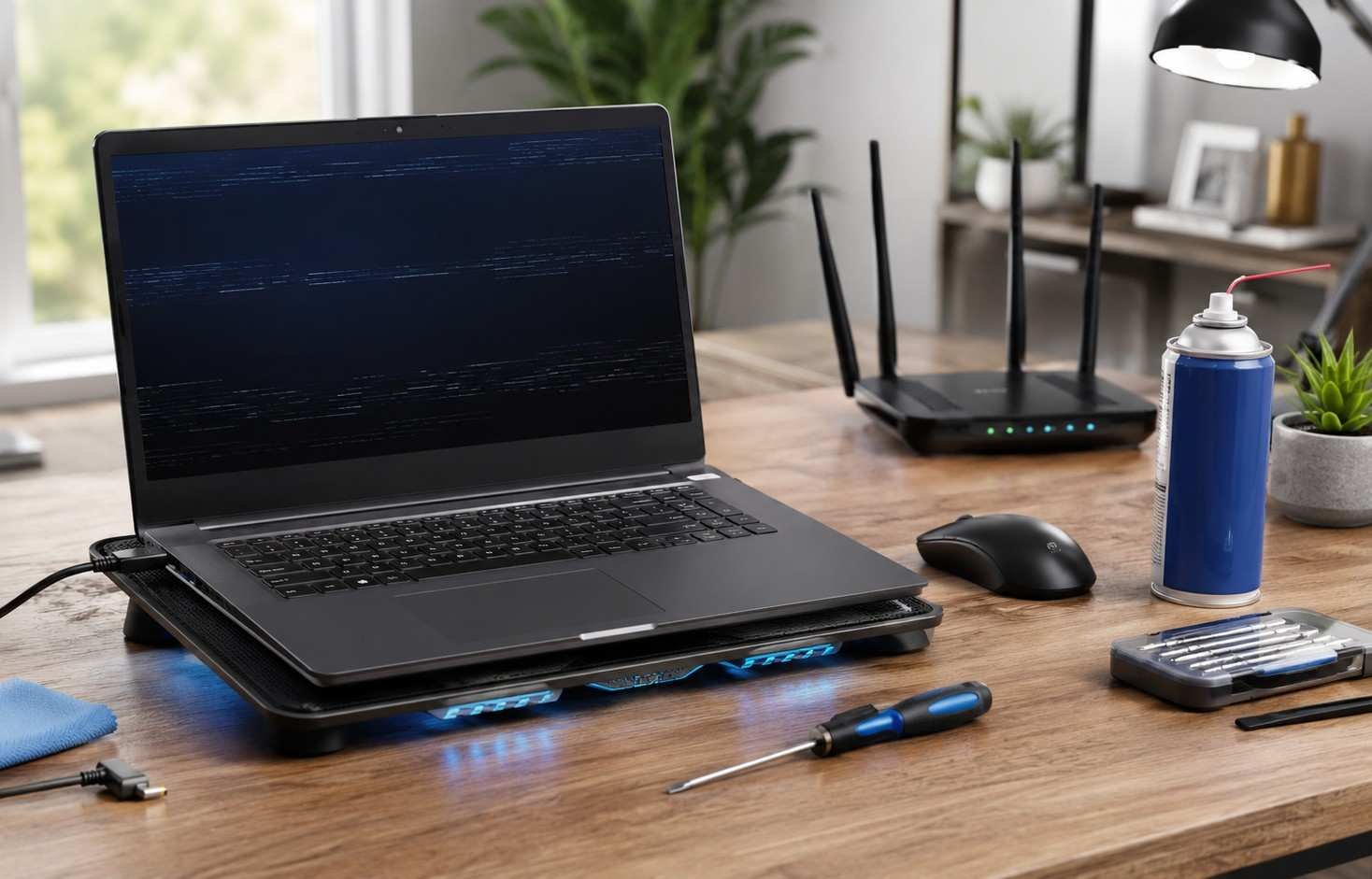
Laptop battery problems usually come from background power hogs, old battery cells, driver conflicts, or charger issues. Start by lowering screen brightness and turning on Battery Saver mode. Turn off Bluetooth when you do not need it and close apps running in the background.
If your laptop is plugged in but not charging, test the charger in a different wall outlet. Check the power brick, charging cable, and charging port for damage. A loose charging port or bent connector can cause charging failure.
On Windows, search for Device Manager, expand the Batteries section, right-click the battery driver, and uninstall it. Then restart the laptop so Windows can reinstall the driver automatically. This can fix some “plugged in, not charging” problems caused by driver conflicts.
If your laptop only works while plugged in, the battery may be worn out. In that case, battery replacement may be better than repeated temporary fixes.
What Should I Do If My Laptop Won’t Turn On?
A laptop not turning on feels serious, but the cause may be simple. Sometimes static charge buildup or a failed power handshake stops the device from starting.
Disconnect the charger first. If your laptop has an external removable battery, remove it. Then press and hold the power button for 30 to 40 seconds to drain residual static electricity. After that, plug in only the charger adapter and try turning the laptop on again.
If you see lights or hear the fan but the screen stays black, connect the laptop to an external monitor. This helps you check whether the laptop is running but the display is not working. If there are no lights, no fan sound, and no charging indicator, the charger, battery, charging port, or motherboard may need professional inspection.
This kind of quick troubleshooting also matters when discussing How Small Businesses Can Use Technology to Grow, because reliable laptops help teams avoid downtime and stay productive.
Why Does My Laptop Wi-Fi Keep Disconnecting?
A laptop Wi-Fi problem can interrupt work calls, online classes, streaming, and browsing. First, check whether other devices connect to the same Wi-Fi network. If your phone also disconnects, restart your home router. If only your laptop has trouble, focus on the laptop settings.
Turn Airplane Mode on and off again. Then go to Wi-Fi settings, choose Forget Network, and reconnect using your password. Restart the router and laptop if the issue continues.
Outdated wireless drivers can also cause frequent disconnection. Windows users should update the wireless adapter driver through Device Manager or Windows Update. Mac users should install the latest macOS update. If your laptop only disconnects far from the router, your home network signal may be weak rather than your laptop being faulty.
How Do I Fix a Black Screen or Screen Flickering?
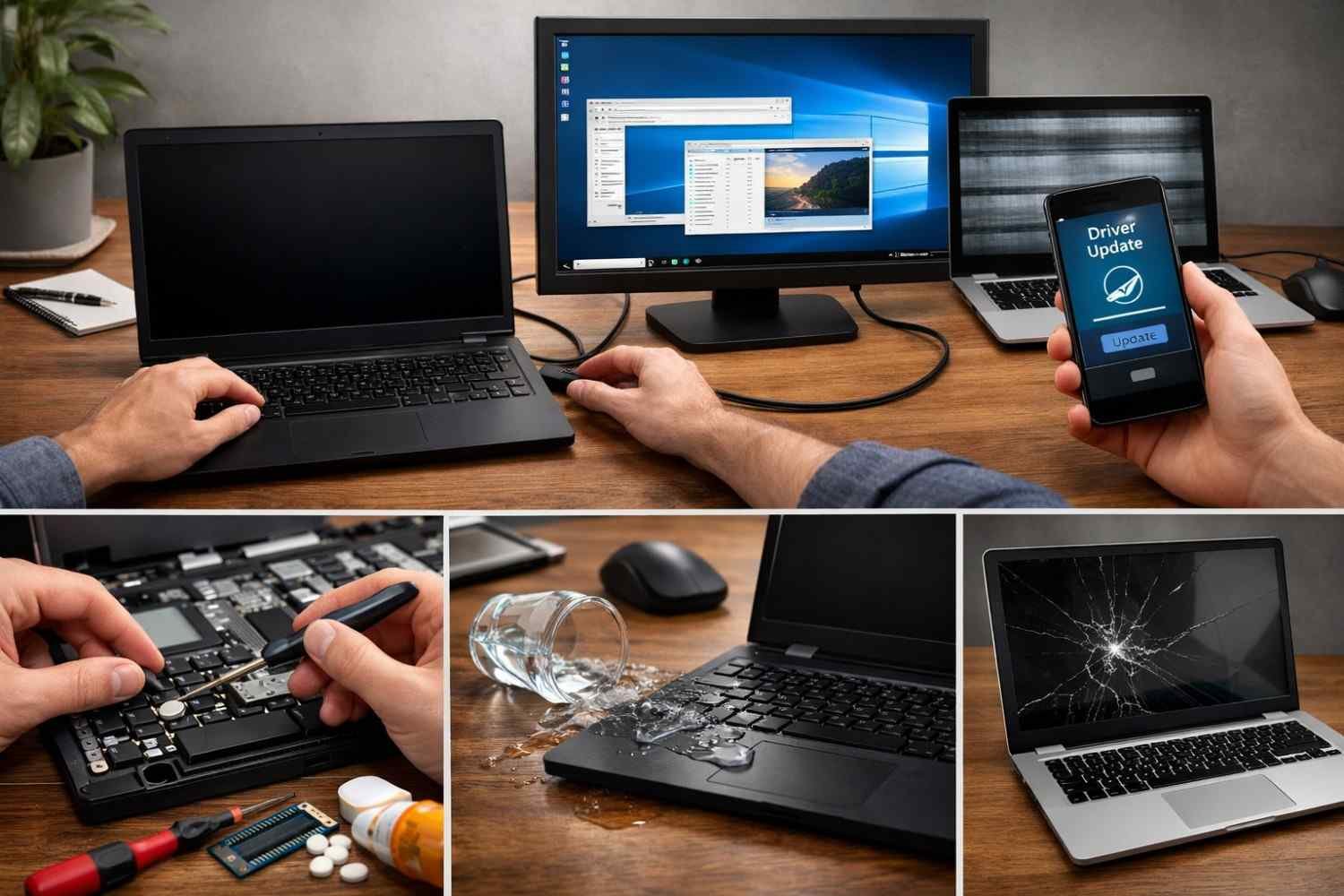
A black screen or laptop screen flickering can come from display settings, outdated graphics drivers, loose internal cables, or screen damage. First, increase brightness and restart the laptop. Then connect it to an external monitor.
If the external monitor works, your laptop screen or display connection may be the issue. If both screens fail, the problem may be related to graphics drivers, system files, or deeper hardware trouble.
For screen flickering, update your graphics driver and operating system. If the flickering started after installing a new app, uninstall that app and restart the laptop. If the laptop was dropped or exposed to liquid, avoid forcing the screen and get it checked.
Why Is My Keyboard or Touchpad Not Working?
A keyboard not working on laptop devices can happen because of dust, crumbs, disabled settings, or driver errors. Restart the laptop first. If only a few keys fail, clean around the keys carefully with compressed air.
For touchpad issues, check whether the touchpad was accidentally disabled. Many laptops use a function key shortcut to turn the touchpad on or off. You can also connect an external mouse while adjusting settings.
If the keyboard or touchpad stops working after an update, reinstall or update the driver. If liquid spills on the keyboard, shut down the laptop immediately and avoid pressing more keys.
How Do I Fix the Blue Screen of Death?
The Blue Screen of Death, also called BSOD, usually appears because of corrupted operating system files, driver conflicts, faulty updates, or hardware problems. When it happens, take note of the Stop Code shown on the screen. That code can help identify the problem.
After restarting, run Command Prompt as an administrator and type sfc /scannow. This checks and repairs damaged Windows system files. You should also update drivers, uninstall recently added software, and check whether a Windows update caused the issue.
If BSOD (Blue screen of death) happens again and again, do not ignore it. Back up your files quickly. Repeated blue screens can point to failing hardware, memory issues, or deeper system corruption.
When Should I Stop Trying DIY Laptop Fixes?
Simple laptop troubleshooting tips are useful, but some problems need expert repair. Stop trying home fixes if you notice a swollen battery, burning smell, clicking hard drive noise, liquid damage, exposed wires, cracked screen, or repeated shutdowns.
I always suggest backing up important files as soon as your laptop starts acting unreliable. Documents, photos, school work, business files, and tax records are often more valuable than the laptop itself.
How Can I Prevent Laptop Problems?
Good laptop maintenance tips can prevent many repairs. Keep your laptop on a flat surface, clean vents regularly, install updates, avoid random chargers, and keep drinks away from the keyboard. Use antivirus protection on Windows and back up files to cloud storage or an external drive.
Do not ignore early warning signs like fan noise, overheating, battery swelling, or repeated freezes. Small problems are easier and cheaper to fix when you catch them early.
Frequently Asked Questions (FAQs)
1. What are the most common laptop problems?
The most common laptop problems include slow performance, overheating, battery drain, charging failure, Wi-Fi disconnection, black screen, keyboard issues, touchpad trouble, app crashes, and BSOD errors.
2. Can I fix laptop problems at home?
Yes, you can fix many simple software, Wi-Fi, battery, and performance issues at home. However, you should avoid DIY repairs if there is liquid damage, battery swelling, burning smell, or internal hardware failure.
3. Why is my laptop slow all of a sudden?
Your laptop may slow down because too many startup apps are running, storage is nearly full, malware is active, updates are pending, or background apps are using too much memory.
4. Why does my laptop keep overheating?
Your laptop may overheat because dust blocks the vents, the fan is working too hard, heavy apps are running, or the laptop is sitting on a soft surface that blocks airflow.
5. Are Common Laptop Problems and Easy Fixes enough to avoid repair?
Common Laptop Problems and Easy Fixes can solve many everyday issues, but they cannot fix every hardware failure. If your laptop shows serious warning signs, professional repair is safer.
Final Thoughts
Laptop issues do not always mean you need a new computer. Start with simple steps like restarting the device, checking the charger, cleaning storage, updating software, scanning for malware, and improving airflow.
Common Laptop Problems and Easy Fixes are most helpful when you act early. If your laptop is slow, hot, disconnected, or not charging, try the safe fixes first. If the problem involves smoke, swelling, liquid, clicking sounds, or repeated shutdowns, back up your files and get expert help before the damage gets worse.